Remover Páginas
Delete selected pages from your PDF.
or drop files here
Remover Páginas for Everyone
We make it easy to remover páginas directly in your browser. No software installation is required. Everything happens online, securely and quickly, giving you the best result every time.
- Fast and easy to use
- Secure file processing
- High quality output
- Works on all devices
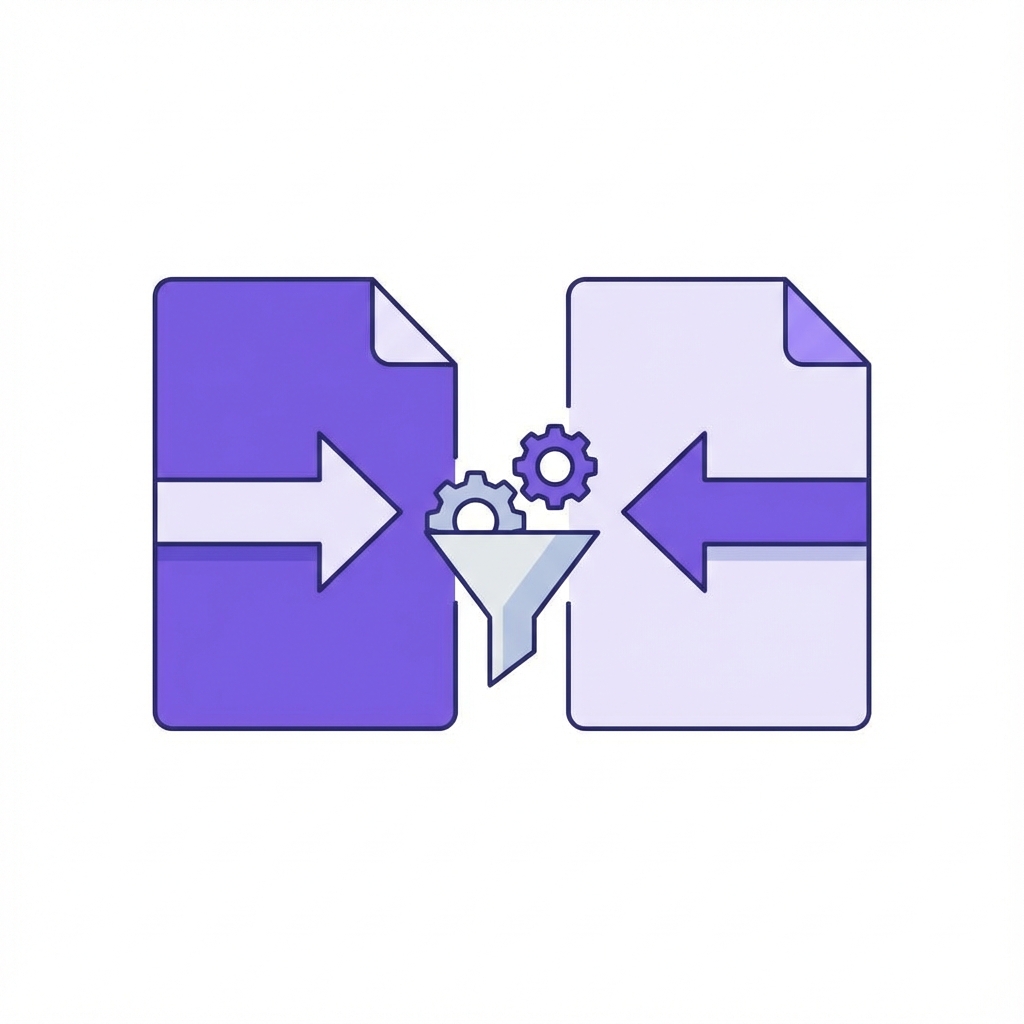
Como Remover Páginas
1.
Upload your file
Drag and drop your file into the box or click to select from your device.
2.
Processing
We instantly process your file in the cloud using our secure innovative technology.
3.
Download
Wait for the conversion to finish and download your file directly.
Remover Páginas Perguntas frequentes
Yes. You can specify a range of pages (e.g., '1-5') or individual page numbers (e.g., '2, 4, 9'). Our tool will process the document and delete every page you listed in a single pass.
Yes, likely significantly. If you remove pages containing high-resolution images or heavy graphics, the overall file size will drop accordingly. However, shared resources (like fonts used on other pages) will be kept.
The process creates a *new* copy of your PDF with the pages removed. Your original file on your computer remains untouched. If you made a mistake, just re-upload your original file and try again.
It depends. If you delete a page that was the destination of a bookmark or hyperlink, that link will no longer work. However, links within the remaining pages will function normally.
You cannot edit a locked file directly. You must remove the password protection first using our Unlock PDF tool before you can delete pages from the document.
PDF viewers technically calculate page numbers dynamically. So yes, if you delete Page 2, the old Page 3 becomes the new Page 2.